
How to Get SHA‑1 & SHA‑256 Fingerprints for Android Apps in 2026 — Updated for Android Studio & Play App Signing
App Development Trends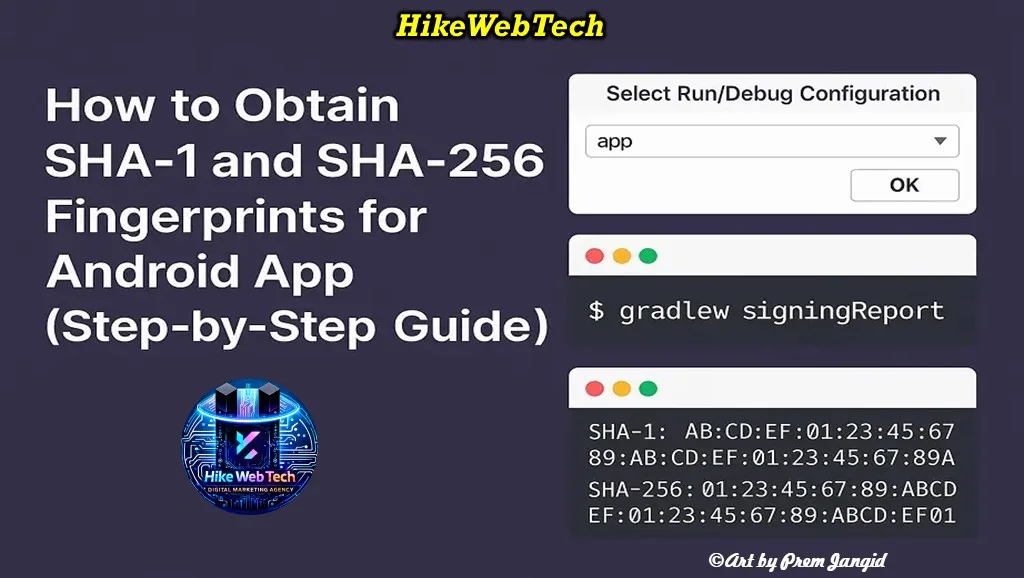
How to Get SHA‑1 & SHA‑256 Fingerprints for Your Android App — Updated for Android Studio & Google 2026 Standards
Whether you’re building your first Android app or managing complex multi‑variant projects, obtaining your app’s SHA‑1 and SHA‑256 fingerprints is essential for integrating modern services like Firebase, Google APIs, Facebook Login, OAuth2, Google Maps, Google Wallet, ML‑powered APIs, and many others. These fingerprints authenticate your app with external services and act as secure identifiers for your signing certificate.
In this guide, you’ll learn:
-
What SHA‑1 & SHA‑256 actually are and why they matter
-
How to get them from Android Studio (debug & release)
-
How to get them without Android Studio (keytool, CLI tools)
-
How to get fingerprints from signed APKs/AABs
-
Play App Signing and why it’s now best‑practice
-
How to add these fingerprints for Firebase & Google APIs
-
How to generate Facebook key hashes
-
Common errors, troubleshooting, and advanced tips
This updated 2026 guide reflects current Google and Android documentation, tooling, and best practices and is suitable for beginners and experienced developers alike.
What Are SHA‑1 and SHA‑256 Fingerprints?
Before we jump to tools and commands, you need to understand what these fingerprints are and why they’re used.
Cryptographic Fingerprints Explained
Every digital certificate (such as your Android app’s signing certificate) is uniquely identifiable by a cryptographic hash — a fixed‑length string generated from the public key and other certificate data using a hashing algorithm.
Two of the most common such algorithms are:
| Algorithm | Output Length | Security Level |
|---|---|---|
| SHA‑1 | 160 bits (40 hex chars) | Lower security; widely used historically |
| SHA‑256 | 256 bits (64 hex chars) | High security; modern standard |
These hashes serve as fingerprints for certificates. Because even tiny changes in the certificate data produce completely different hash outputs, these fingerprints act like unique identifiers. That’s why services use them for authentication — to verify that a request really comes from your app and not from a modified or cloned version.
Important: Google increasingly prefers SHA‑256 for security and modern API integrations. Some services now require SHA‑256 or perform additional integrity checks with it. That’s why this guide emphasizes capturing both SHA‑1 and SHA‑256.
Why Android Apps Need SHA Fingerprints
Your Android app’s signing certificate (the one you use to sign APKs/AABs) is fundamental to many integrations:
When You’ll Be Asked for SHA‑1 / SHA‑256
You might need to provide fingerprints for:
-
Firebase Authentication (Google sign‑in, phone auth, email auth)
-
Google Maps APIs
-
Google Cloud APIs
-
Facebook Login & Graph APIs
-
OAuth2 clients for Google APIs
-
App Integrity checks / SafetyNet / Play Integrity
-
Google Identity Services
-
Google Wallet / Pay integrations
If the fingerprint you register with the service doesn’t match your app’s signing certificate, API calls will fail, often without a clear error message.
For example:
If you register your debug SHA‑1 with Firebase, but then use the release APK (signed with a different key) — Firebase calls (e.g., Google Sign‑In) will fail. Always register all relevant fingerprints: debug, release, Play App Signing, and local upload keys.
How Android Signing Works (Quick Overview)
Before we explore how to extract fingerprints, let’s quickly recap how Android signing works:
Key Concepts
-
Debug Keystore:
Automatically generated by Android Studio for debug builds. Never use it for release. -
Release Keystore:
Your own keystore used to sign production releases. -
Play App Signing / Google Play Signing:
A managed service where Google securely stores your app signing key and you upload an upload key. Play Console shows you the true app signing certificate’s fingerprints. -
APK / AAB Signing:
The process of applying your certificate to an Android package (APK or AAB) before distribution.
By default, Android Studio signs debug builds with a debug key stored in your user directory. For production, you configure a release keystore.
Getting SHA‑1 & SHA‑256 From Android Studio 2026 Updates
This is the most common and easiest method — especially during development.
Step‑by‑Step: Using the Gradle signingReport
-
Open your Android project in Android Studio.
-
Press View → Tool Windows → Terminal to open the Terminal pane.
-
Run the Gradle signing report:
./gradlew signingReport(Windows:
gradlew signingReport) -
Look for an output block like this:
Variant: debug
Config: debug
Store: /Users/.../.android/debug.keystore
Alias: AndroidDebugKey
MD5:  AA:BB:CC:...
SHA-1: AA:BB:CC:...
SHA-256: AA:BB:CC:...
You should see entries for debug and release (if configured).
Copy the SHA‑1 and SHA‑256 values you need for API registrations.
What If You Don’t See signingReport?
In some Android Studio setups (especially with custom Gradle config), signingReport may not show up in the Gradle task list initially.
Here’s how to fix that:
-
Open File → Settings → Experimental
-
Enable “Do not build Gradle task list during Gradle sync” (uncheck it).
-
Sync the project.
-
Now check Gradle → Tasks → android →
signingReport.
This forces Android Studio to load all Gradle tasks.
Getting SHA Fingerprints Without Android Studio 2026
If you’re on a machine without Android Studio — such as a CI/CD environment, build server, or remote environment — use Java’s keytool.
Using keytool
-
Open a terminal or command prompt.
-
Run:
keytool -list -v \
  -keystore <path‑to‑your‑keystore>.jks \
  -alias <your‑key‑alias>
-
<path‑to‑your‑keystore>.jks: The keystore file location -
<your‑key‑alias>: Your key alias
-
The output includes certificates and shows:
SHA1:  AA:BB:CC:...
SHA256: AA:BB:CC:...
Tip: This works on macOS, Linux, and Windows as long as the JDK is installed and keytool is on your PATH.
How to Get Fingerprints From a Signed APK or AAB
Sometimes you might not have access to the keystore but you do have a signed app binary (.apk or .aab). You can extract the certificate fingerprints from the app package.
Using apksigner (recommended)
apksigner verify --print-certs app-release.apk
This prints:
-
Certificate DN
-
SHA‑1
-
SHA‑256
-
MD5
Using keytool & jar
keytool -printcert -jarfile app-release.apk
Either method shows the exact fingerprint of the certificate used to sign the APK/AAB.
Using Google Play App Signing (Best for Production)
Google Play App Signing securely manages your signing key and lets Google re‑sign your app on upload. This creates different certificate fingerprints between your upload key and final app key.
How It Works
-
You generate an upload key and register it in the Play Console.
-
You upload your AAB signed with the upload key.
-
Play Console re‑signs it with the app signing key — the one that actually gets distributed.
-
Production API integrations must use the app signing key’s fingerprints.
How to Find It (Play Console)
-
Open Google Play Console
-
Go to Setup → App Integrity (or App Signing)
-
You’ll see:
-
App signing key certificate (SHA‑1 / SHA‑256)
-
Upload key certificate (SHA‑1 / SHA‑256)
-
When registering fingerprints for production services like Firebase or Maps API, always use the “App signing key certificate” values — not the upload key.
Registering SHA Fingerprints With Firebase 2026 Updates
Firebase supports multiple fingerprints per project — which is useful for debug, release, and Play App Signing:
-
Open Firebase Console → Project → Settings
-
Under Your apps → Android:
-
Add:
-
Debug SHA‑1 / SHA‑256
-
Release SHA‑1 / SHA‑256
-
Play App Signing SHA‑1 / SHA‑256
-
After adding, download the updated google‑services.json file and replace the old one in your Android app.
Facebook Key Hash (Derived From SHA‑1)
Facebook doesn’t use raw SHA‑1 strings — it requires a Base64‑encoded version known as the key hash.
Convert SHA‑1 to Base64
echo <your‑sha1‑without‑colons> \
  | xxd -r -p \
  | openssl base64
Example:
echo AABBCCDDEEFF00112233445566778899AABBCCDD \
  | xxd -r -p \
  | openssl base64
Use that string in your Facebook Developer console.
Common Mistakes & How to Avoid Them
| Problem | Cause | Solution |
|---|---|---|
| APIs fail after release | Registered debug SHA instead of release/Play SHA | Add release and Play SHA |
| keytool not found | JDK not installed or PATH missing | Install JDK & update PATH |
| Wrong keystore | Using debug keystore for production | Always use release keystore |
| Lost keystore | Unable to update app | Keep backups & consider Play App Signing |
Frequently Asked Questions (FAQs)
1. Can I use debug SHA‑1 for production?
Answer: No. Debug keystore changes across machines and builds. Use release or Play App Signing keys.
2. Do I need SHA‑256 for all services?
Answer: Not always, but recommended. Google increasingly enforces SHA‑256 for modern APIs.
3. What if my keystore is lost?
Answer: You can’t update existing apps signed with that keystore unless you use Play App Signing with key upgrade options. Always back up!
4. What if I see multiple fingerprints?
Answer: You might have multiple keystores (debug, release, Play). Register all relevant ones.
Sure! Here are the official and reliable external links in English that you can reference in your article “How to Get SHA‑1 & SHA‑256 Fingerprints for Android Apps”. These are authoritative sources from Google Developers and Google Play Console:
Official & Helpful External References
-
Google Developers — Client Authentication & SHA‑1 Fingerprints
Official guide on obtaining SHA‑1 and SHA‑256 fingerprints usingkeytool,signingReport, and Play App Signing.
👉 https://developers.google.com/android/guides/client-auth -
Android Developers — Sign Your App (Play App Signing & SHA‑256)
Official documentation on app signing, upload key, app signing key, and SHA‑1/SHA‑256 fingerprints.
👉 https://developer.android.com/guide/publishing/app-signing
Advanced Tips & CI/CD Integration
Automating Fingerprint Extraction
In CI/CD pipelines (GitHub Actions, GitLab CI, Bitrise, etc.), you can run:
./gradlew signingReport
…or use keytool commands to fetch SHA fingerprints as part of build verification.
Store Keystores Securely
Never check keystores or passwords into public repos. Use encrypted secrets in your CI environment.
Use release variants explicitly
When working with flavors or build types, ensure you target the correct signing configuration.
Obtaining and registering SHA‑1 and SHA‑256 fingerprints is a foundational step in Android development — essential for integrating APIs securely and reliably. As of 2026:













Leave Message